
Lesson 6
Globals, Enums, Player State


Download the week 4 project
Globals
There are many circumstances where every node in your scene should reference the same property or object, such as getting access to the player, the global game speed, or the global settings (sound levels, difficulty, etc). To do this, Godot lets you define Globals in the Project Settings dialog.
Globals
Enumerations
...
...
...
...
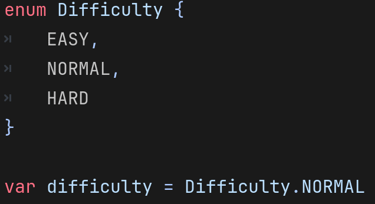
When you want to define something that can only have one of a discrete set of values, such as the game's difficulty (Easy, Normal, Hard), or an enemy type, using something like an int (ex, var difficulty = 1) or string (ex, var difficulty = "easy"). Integers aren't descriptive (is 1 Easy or Normal?), and strings are too open ended, making it easy to use values that don't really exist.
In these cases, it is better to use an enumeration, or an enum. An enumeration is a new type that you define that can only have one of a discrete list of values, which you also define. When you use variables of this type, they can only contain values from the enum.
You define an enumeration with the enum keyword, followed by the enum name, and then a list of the enum values, beginning and ending with curly braces, {}. Enum values follow the same rules as variable names, meaning they can contain upper and lowercase letters, underscores, and numbers, but cannot start with a number, and cannot contain spaces.
Player States
So far, for background tiles, collectables, obstacle, etc., we simply add them to the scene when we need them, and remove them after they are collected or move off the screen. For other game objects, such as the player, you will often need to handle different states, and enable or disable different behaviors based on the current state.
Up to this point, you can consider the player to be in the "Alive", or "Playing" state. The character animations are playing, the user can press the "jump" key to make the character jump, you can pick up collectables and collide with obstacles, etc. However, when the player dies, we want to transition into a "Dying" state or "Dead" state (there is a good reason to have both, which we will cover shortly). While in this state, the player stops moving, you can no longer jump, the animation changes, and you stop handling collisions with other objects in the scene. This is more than just updating a single variable or turning something on or off, we need to completely change how the player behaves.
In its simplest form, the two player states can be illustrated as follows:
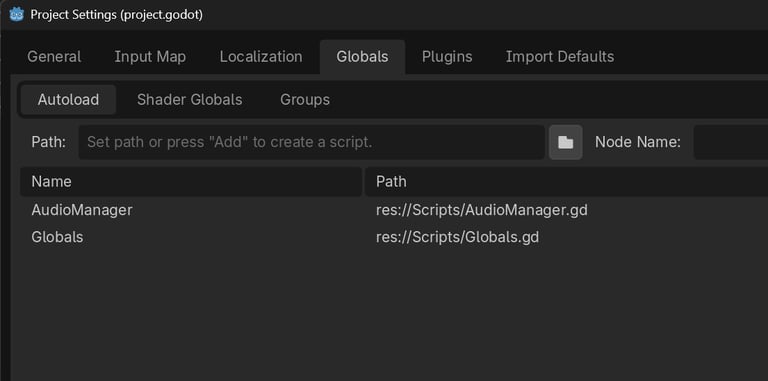
You can add scripts or scenes as globals, and these will always exist in your scene tree. Rather than creating a variable in your script to access these, you can access them directly by name, such as AudioManager.play_single_shot_sound(sound), or Globals.difficulty.
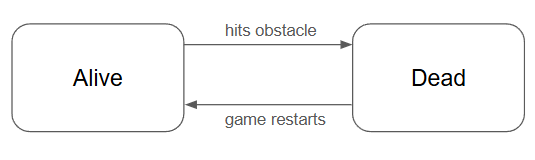
This is called a state diagram, and it shows not only different states that an object can exist in ("Alive" and "Dead", in this case), but also the transition between those states. We can see that the player transitions from "Alive" to "Dead" when he hits an obstacle, and transitions back from "Dead" to "Alive" when the game restarts. Transitions usually also imply some sort of action, such has playing an animation or disabling a node.
What does this look like in code? Well our states are simple enough right now that we don't need to explicitly represent them in code, we can just show/hide sprites and play some audio streams, maybe add a variable isAlive that we can check to know whether or not to handle input. Later, as the game gets more complex, we will need something to help us manage our states and how we transition between them.
Homework
Add Globals
Create a new script called Globals.gd
Add properties that should be accessible to all object objects, such as speed and difficulty.
Update the background and wave nodes to use the global speed rather than having their own speed property.
Open the Project Settings, click on the Globals tab, and add your Globals.gd script as a global object.
(OPTIONAL) Add AudioManager
Add another script called AudioManager.gd and add it as a global object too.
Add a function called play_single_shot_audio(sound) that creates a new AudioStreamPlayer2D, sets its stream property to the sound passed in, adds it to the scene tree, and plays it.
Add a finish(audioPlayer) function and connect the AudioStreamPlayer2D's finished signal to it. Include the CONNECT_APPEND_SOURCE_OBJECT flag in the connection so that it passes the object that emitted the signal to the function.
Update the collectables to use the AudioManager instead of playing their sound effects themselves.
Create Obstacles
Create a new scene just like you did for collectables:
Area2D root node, rename "Obstacle1"
Set the collision layer to 4 (Obstacles) and uncheck all collision masks.
Add Sprite2D or AnimatedSprite2D child node and add the sprite or animation you want. If using an animated sprite, be sure to make it looping (default) and AutoPlay on Load.
Add a CollisionShape2D and add a shape to it that covers the obstacle sprite.
Save the scene.
Add a script to the root node and name it Obstacle.gd
Add a function called hit(player) and define what should happen when the player hits the obstacle (ex. call player.die())
Update the player script
Update the _on_collision_detection_area_entered(area) function to check for nodes in the Obstacles layer (4) and call hit(self).
Handle player death
Add a death animation.
You can either add a new animation to the player's existing AnimatedSprite2D, or add a new AnimatedSprit2D node specifically for the death animation. I prefer the latter, but it's up to you.
Add a player death sound effect.
Either add another AudioStreamPlayer2D node to the player with the death sound, or use AudioManager.play_single_shot_sound().
Add a new die() function which is called from the Obstacle script.
Stop movement: Set the global speed to 0
Hide the player sprite
Play the death animation
Play the death sound
(OPTIONAL) Restart the Game
After the player has died, provide some means to restart the game without having to close it and restart it. This could just be pressing the "jump" action again, or maybe automatically restarting after a few seconds have passed.
You can reload the current scene by calling get_tree().reload_current_scene()